How to Create a Monthly Budget in Excel
Published 2026-11-18
A good budget tells you where the money is meant to go and where it actually went. In Excel you can set that up with a few columns and two or three formulas.
1. List your income and expense categories
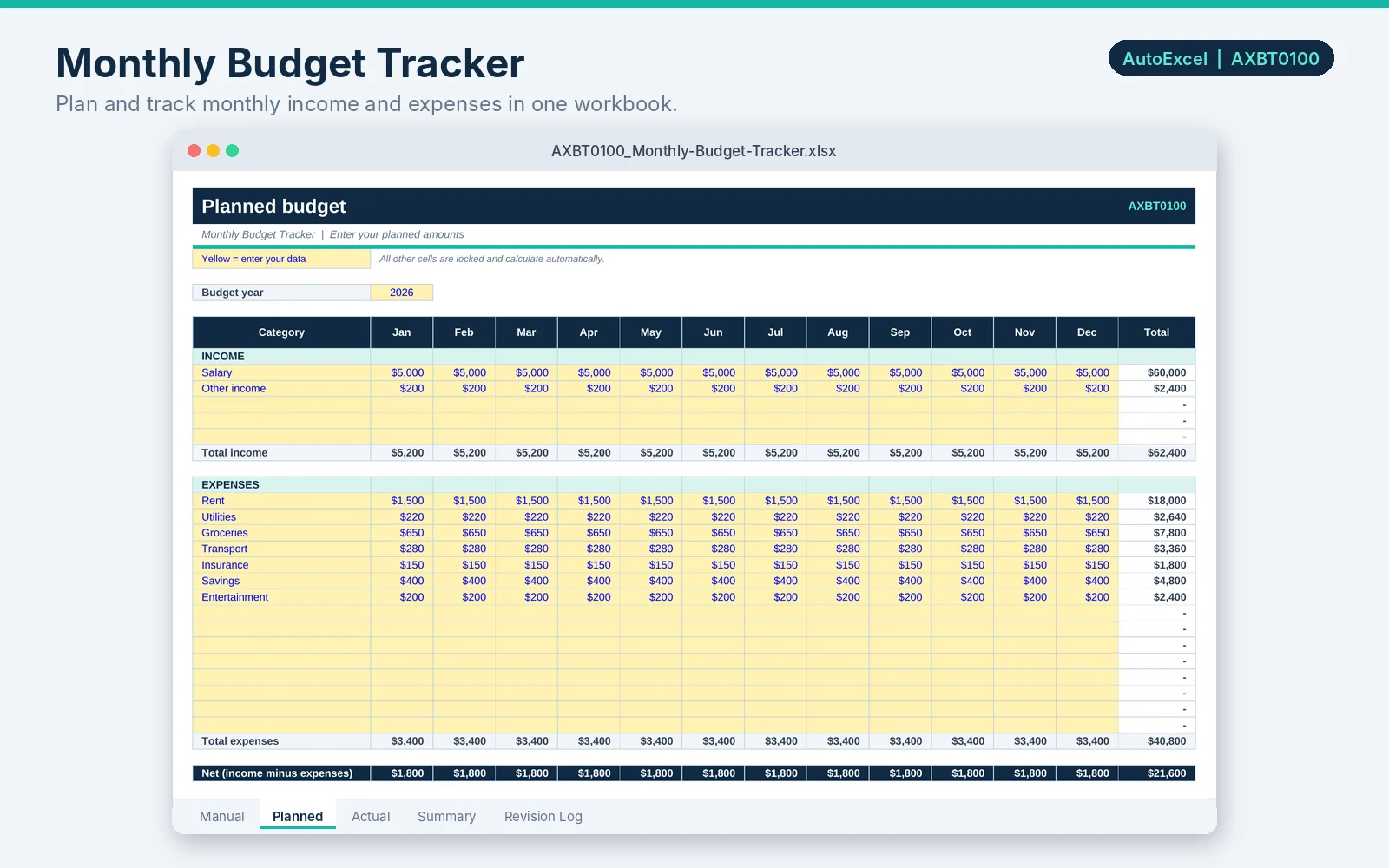
Start with two blocks: income (salary, other income) and expenses (rent, utilities, groceries, transport, insurance, savings and so on). Use the same category names every month so your totals line up.
2. Add Planned and Actual columns
Next to each category, create a Planned column, an Actual column and a Variance column. Planned is what you intend to spend. Actual is what you really spent. Fill Planned at the start of the month and Actual as you go.
3. Add the formulas
With categories in rows 5 to 14, planned amounts in column B and actual amounts in column C:
- Total planned expenses
- =SUM(B5:B14)
- Total actual expenses
- =SUM(C5:C14)
- Variance for a category (positive means under budget)
- =B5-C5
- Net result (income minus expenses)
- =C4-C15
4. Highlight overspending
- Select the Variance cells.
- Choose Home, Conditional Formatting, Highlight Cells Rules, Less Than.
- Enter 0 and choose a red fill. Any category over budget now stands out.
5. Review it monthly
At the end of each month, look at the categories with the biggest variances. Decide whether the plan or the spending needs to change. Copy the sheet for next month, clear the Actual column and adjust Planned.
Tips
- Treat savings as a category, so it is planned like any other expense.
- Keep one row for irregular costs such as annual subscriptions, spread across the months.
- Round to whole dollars if cents are not useful to you.