How to Track Project Tasks in Excel
Published 2026-11-18
You do not need project software to keep a small project on track. A well-built Excel task list shows who owns what, when it is due and what is running late.
1. Set up the task list
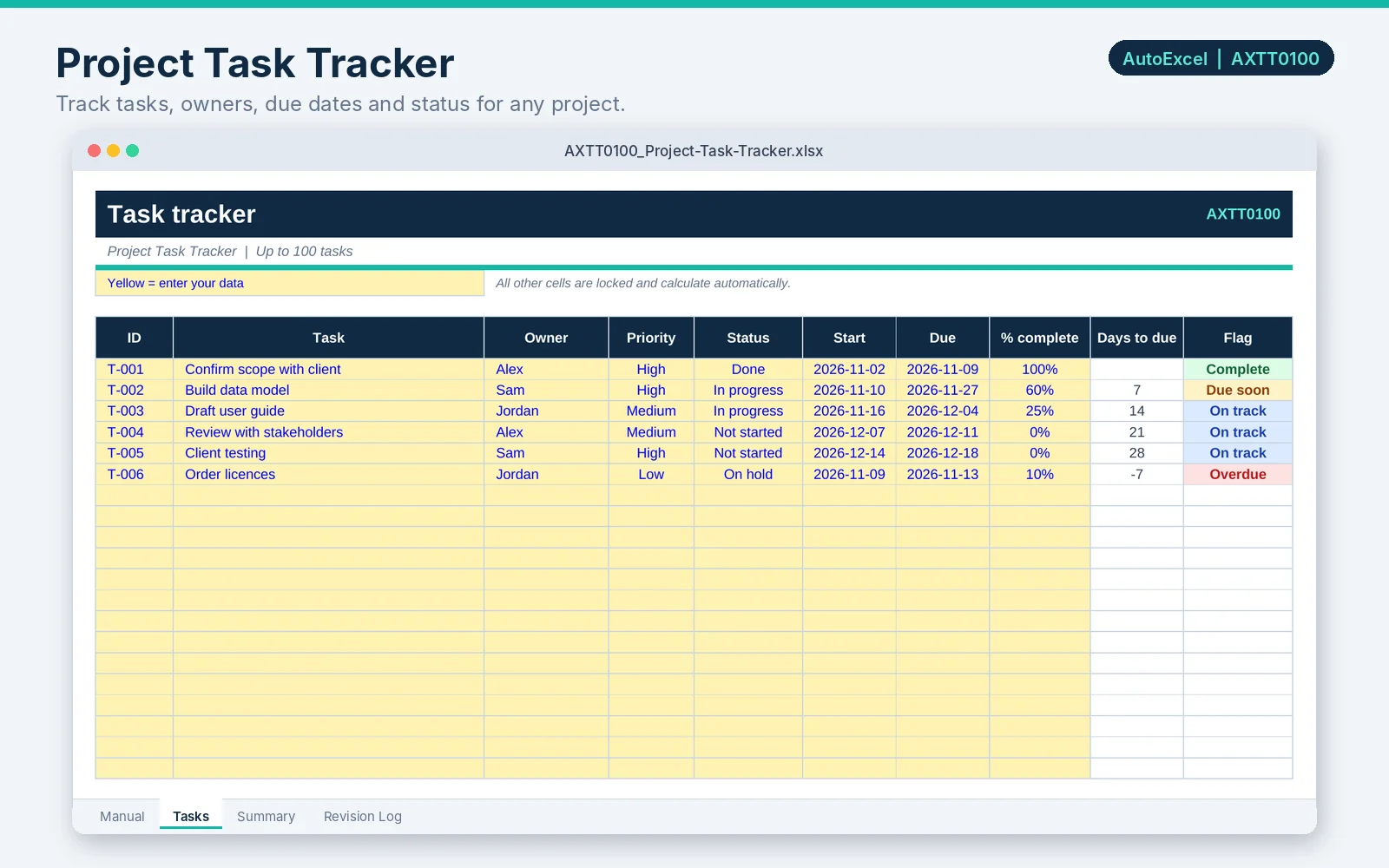
Create columns for ID, Task, Owner, Priority, Status, Start date, Due date and % complete. Add two calculated columns: Days to due and Flag.
2. Add drop-down lists
- Select the Status column cells.
- Choose Data, Data Validation, and set Allow to List.
- In Source, type: Not started,In progress,On hold,Done
- Repeat for Priority with: High,Medium,Low
3. Add the flag formulas
With Status in column E and Due date in column G:
- Days to due
- =IF(OR(G2="",E2="Done"),"",G2-TODAY())
- Flag
- =IF(E2="Done","Complete",IF(G2="","No due date",IF(G2<TODAY(),"Overdue",IF(G2-TODAY()<=7,"Due soon","On track"))))
4. Colour the flags
Use Home, Conditional Formatting, Highlight Cells Rules, Text that Contains to colour Overdue red, Due soon amber and Complete green. At a glance you can see where attention is needed.
5. Summarise it
- Tasks that are overdue
- =COUNTIF(H2:H101,"Overdue")
- Tasks done
- =COUNTIF(E2:E101,"Done")
- Average completion
- =AVERAGE(I2:I101)
Tips
- Turn on filters so each person can see only their own tasks.
- Review the list at the same time every week.
- Because the flags use today's date, they change from day to day. That is the point.