How to Make an Invoice in Excel
Published 2026-11-18
You can build a clear, professional invoice in Excel in about half an hour. This guide shows the layout, the formulas that do the maths for you, and how to send the result as a PDF.
1. Set up the layout
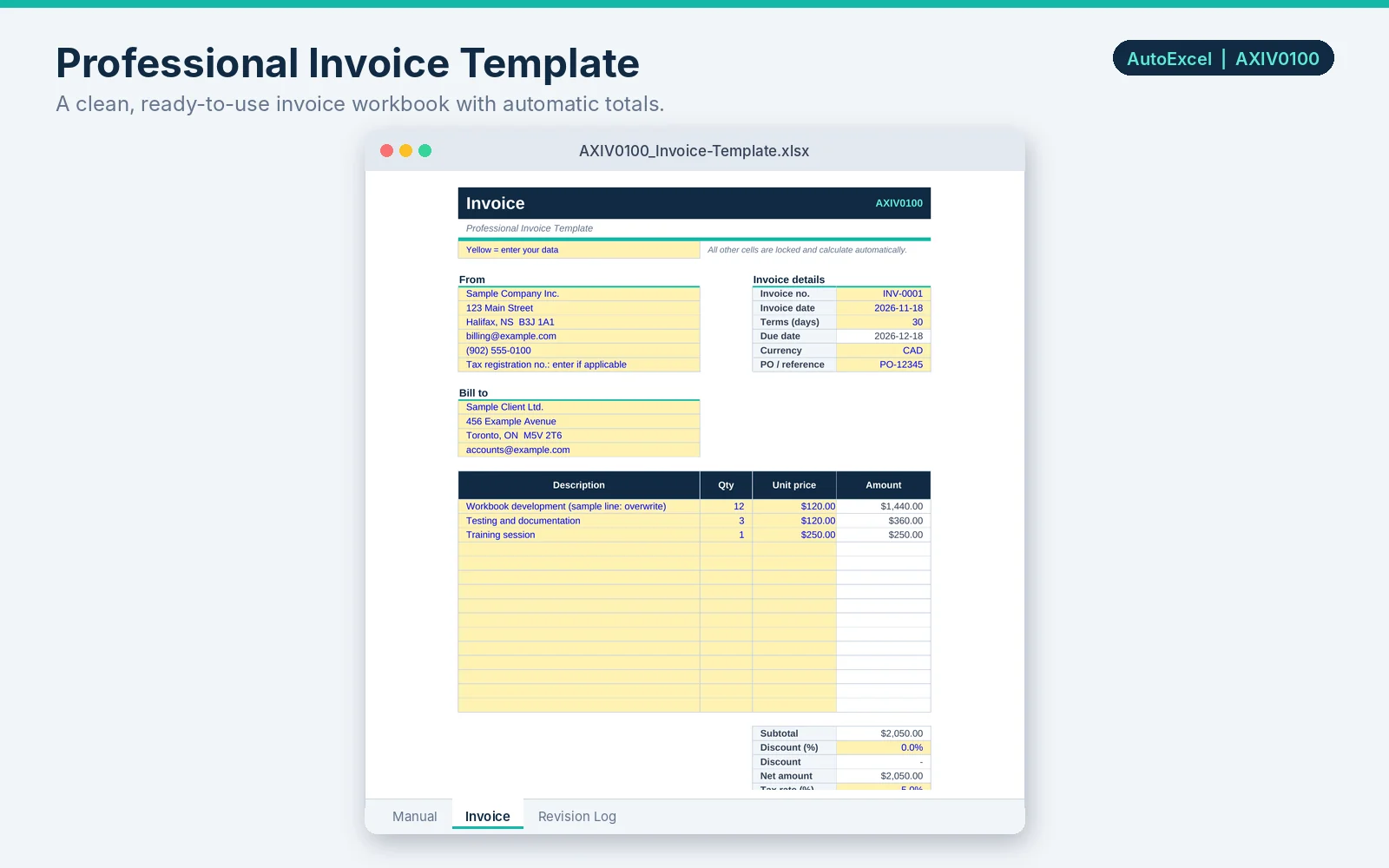
Open a blank workbook. At the top, leave space for your business name, address and contact details, and for the client's name and address. Below that, add the invoice number, invoice date and payment terms.
Under those, create a table with four column headings: Description, Quantity, Unit price and Amount.
2. Add the formulas
Suppose your line items run from row 15 to row 24, with Quantity in column B, Unit price in column C and Amount in column D. These formulas do the work:
- Amount for each line (copy down the column)
- =B15*C15
- Subtotal
- =SUM(D15:D24)
- Tax (with the tax rate typed in a cell such as D27)
- =ROUND(D26*D27,2)
- Total due
- =D26+D28
- Due date (invoice date in D8, terms in days in D9)
- =D8+D9
3. Format it so it looks professional
- Format the Amount column as currency: select the cells, then choose Home, Number Format, Currency.
- Format the date cells as dates, so they do not show as plain numbers.
- Add a bold header row with a fill colour, and keep borders light.
- Use Page Layout, Print Area to set the area that prints, and Fit to 1 page wide.
4. Handle tax correctly
Whether you charge sales tax, and at what rate, depends on your location and your registration. Enter the rate in its own cell instead of typing it into formulas, so you can change it without editing every invoice. If you are unsure what applies to you, check with the tax authority or an accountant.
5. Number your invoices and save as PDF
Give every invoice a unique number and keep a list of what you have issued. To send an invoice, choose File, Export, Create PDF/XPS (or Save As and choose PDF). Send the PDF rather than the Excel file, so the client cannot change it.
Common mistakes
- Typing totals by hand instead of using formulas.
- Overwriting a formula by accident. Protecting the sheet (Review, Protect Sheet) and unlocking only the cells you fill in prevents this.
- Reusing the same invoice number.