How to Track Inventory in Excel
Published 2026-11-18
For a small business, an Excel inventory list can be all you need. This guide shows how to track what you have, what it is worth and what to reorder.
1. Create the columns
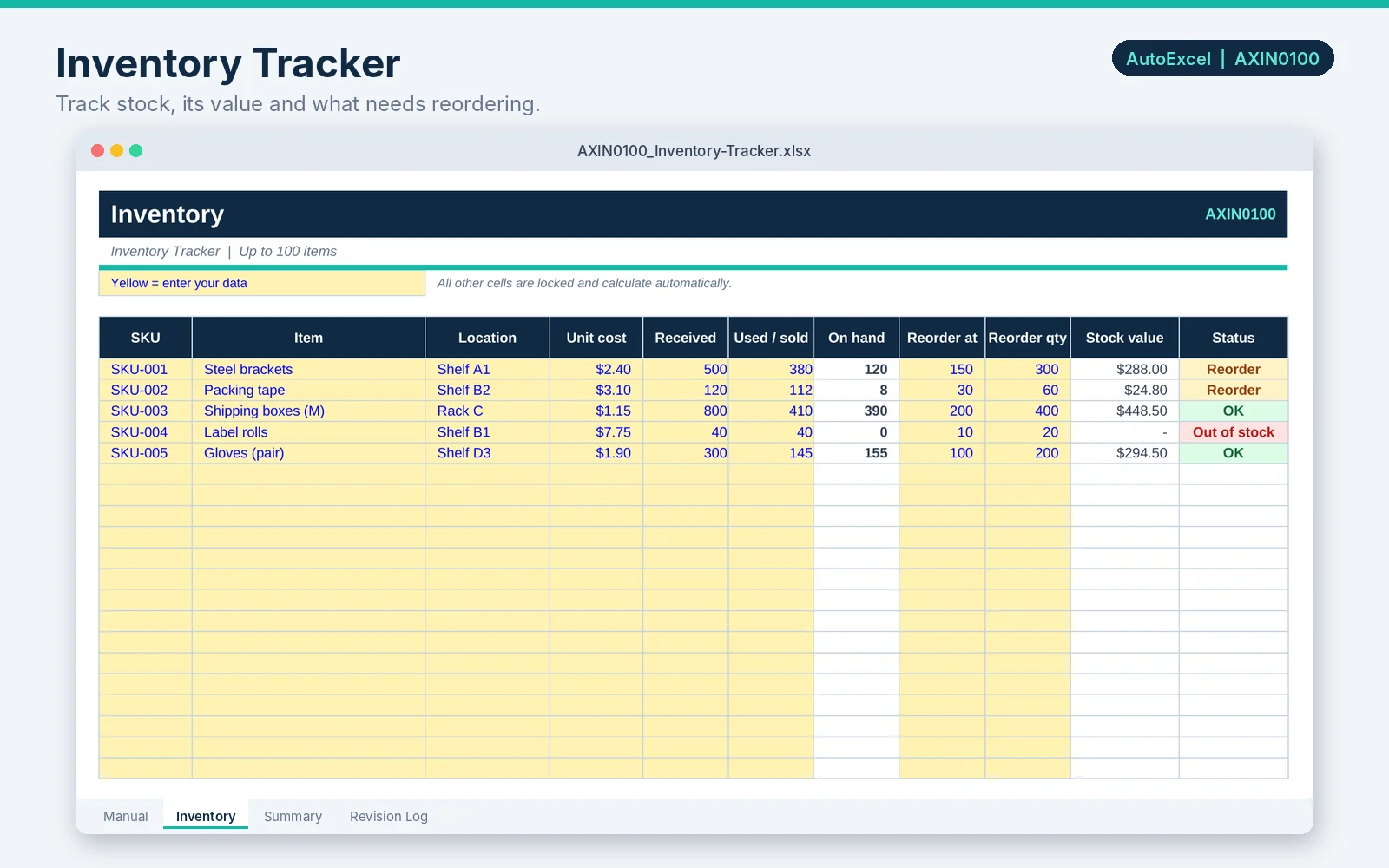
One row per item. Useful columns are SKU, Item, Location, Unit cost, Received, Used or sold, On hand, Reorder level and Stock value.
2. Add the formulas
With Received in column E, Used or sold in column F, Unit cost in D, On hand in G and Reorder level in H:
- On hand
- =E2-F2
- Stock value
- =G2*D2
- Reorder status
- =IF(G2<=0,"Out of stock",IF(G2<=H2,"Reorder","OK"))
- Total stock value
- =SUM(I2:I101)
3. Make the status easy to see
- Select the status column.
- Choose Home, Conditional Formatting, Highlight Cells Rules, Text that Contains.
- Create one rule for Reorder (amber) and one for Out of stock (red).
4. Keep the data clean
- Use Data, Data Validation to allow only whole numbers in the quantity columns.
- Freeze the header row (View, Freeze Panes) so it stays visible as you scroll.
- Turn on filters (Data, Filter) so you can show only the items that need reordering.
5. Know the limits
A running-total sheet like this does not keep a history of each movement. If you need to know who took what and when, or you handle high volumes or multiple locations, a dedicated inventory system will serve you better. Count your stock physically at regular intervals and correct the sheet.