How to Make a Timesheet in Excel with Overtime
Published 2026-11-18
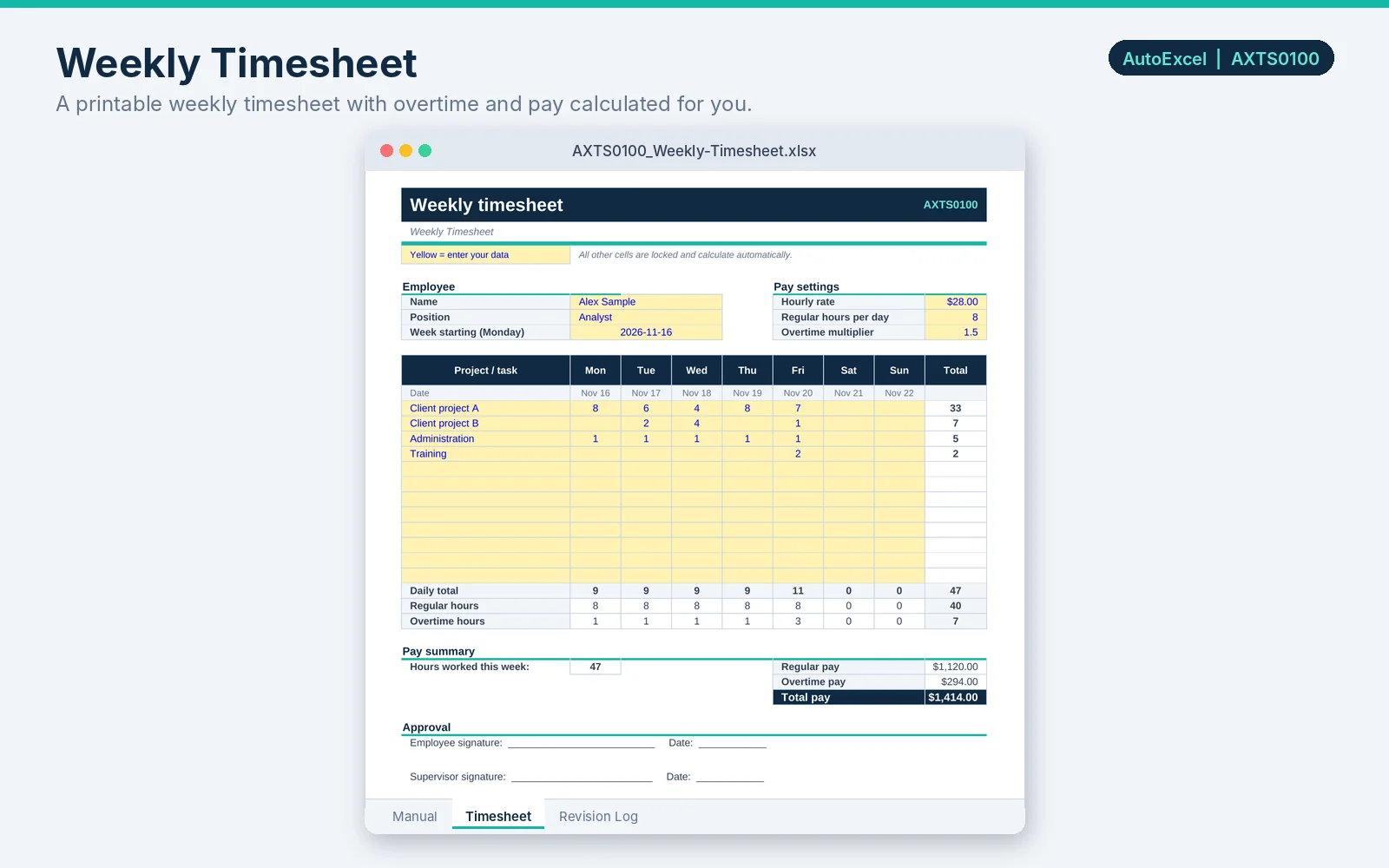
A weekly timesheet in Excel can total the hours, split off the overtime and work out the pay, so nobody does it by calculator at the end of the week.
1. Lay out the week
Put project or task names down the left, and the days Monday to Sunday across the top. Enter the hours worked as decimal numbers (for example 7.5 for seven and a half hours) in the cells.
Add the week's starting date in one cell. Fill the day headings from it, so the dates update when you change the week.
- Date for Tuesday (start date in C3, Monday heading in C5)
- =C3+1
2. Total each day and the week
With hours in rows 6 to 17, the Monday column is column C:
- Daily total (copy across)
- =SUM(C6:C17)
- Weekly total
- =SUM(C18:I18)
3. Split regular and overtime hours
Enter the regular hours per day (for example 8) in a settings cell, such as J8. For overtime that applies to hours over the daily limit:
- Regular hours for a day (daily total in C18)
- =MIN(C18,$J$8)
- Overtime hours for a day
- =MAX(0,C18-$J$8)
4. Calculate pay
Put the hourly rate in J7 and the overtime multiplier (1.5 for time and a half) in J9. Total regular hours are in J19 and total overtime hours in J20.
- Regular pay
- =ROUND(J19*J7,2)
- Overtime pay
- =ROUND(J20*J7*J9,2)
- Total pay
- =J21+J22
Check your overtime rules
Overtime rules differ. Some apply after a number of hours in a day, some after a number of hours in a week, and some differ for holidays or particular agreements. Make sure the formulas follow the rules that apply to you, and treat the result as gross pay before deductions, not a payroll calculation.
Printing and approval
Set the print area to one page, and leave lines for the employee and supervisor to sign and date. Use a fresh copy of the sheet for each person each week.